
Everything You Need to Translate Manga Confidently
Learn how to create your account, translate a single page or full chapter, import from a URL, manage terminology, preserve character voices, and review every result from one organized workspace.
Search the complete documentation and jump to the first matching section.
Try a term such as chapter, URL, glossary, history, or character.
Sign Up Process
Create and activate your Manga Translator AI account in a few simple steps.
Visit the Registration Page
Go to app.mangatranslatorai.io/register to begin.
Choose Your Preferred Sign-Up Method
We offer two convenient ways to register:
Standard Registration
Enter your name, email address, password, and password confirmation to create your account manually.
Google Sign-Up
Quickly sign up with your Google account, so you do not need to remember another password.
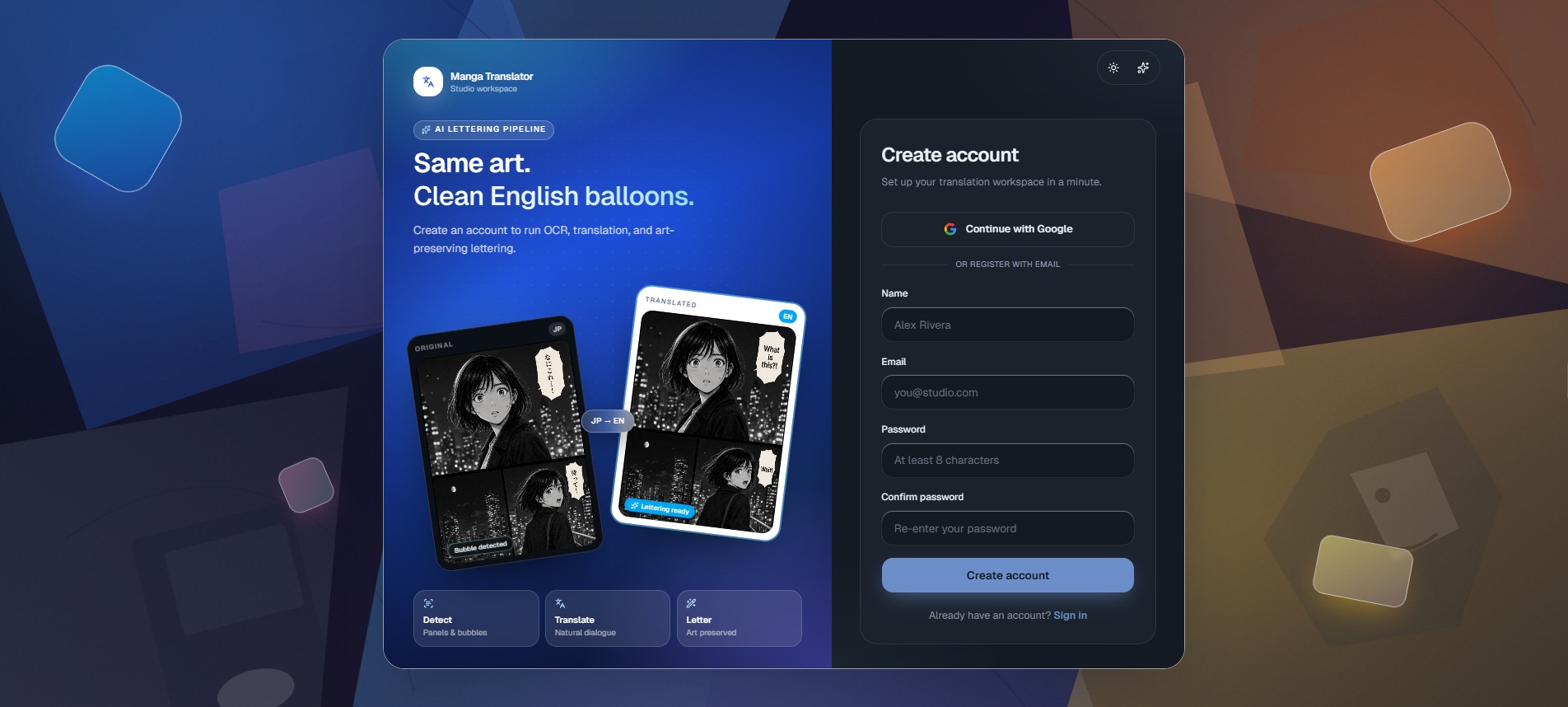
Enter Your Details
- Full Name — Used for your account profile.
- Email Address — This will be your login ID.
- Password — Enter the password you want to use for your Manga Translator AI account.
- Verify Your Email — Activate your account through the verification message.
Verify Your Email
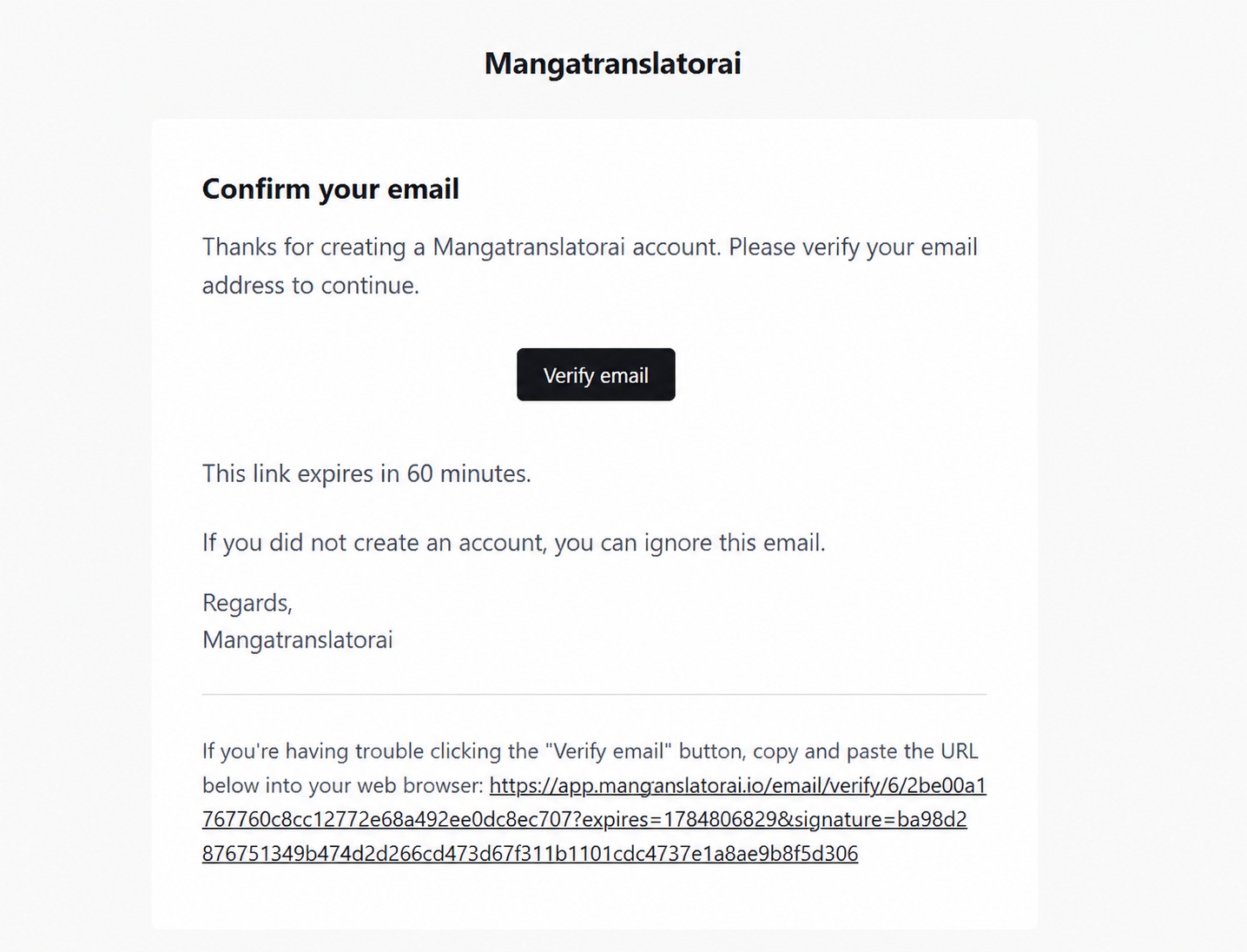
After signing up, an automatic verification email will be sent to the address you provided.
- Check your inbox. Look for an email from Manga Translator AI. If you do not see it, check your Spam or Junk folder.
- Open the email and click Verify Email Address. Once verified, your account is activated and ready to use.
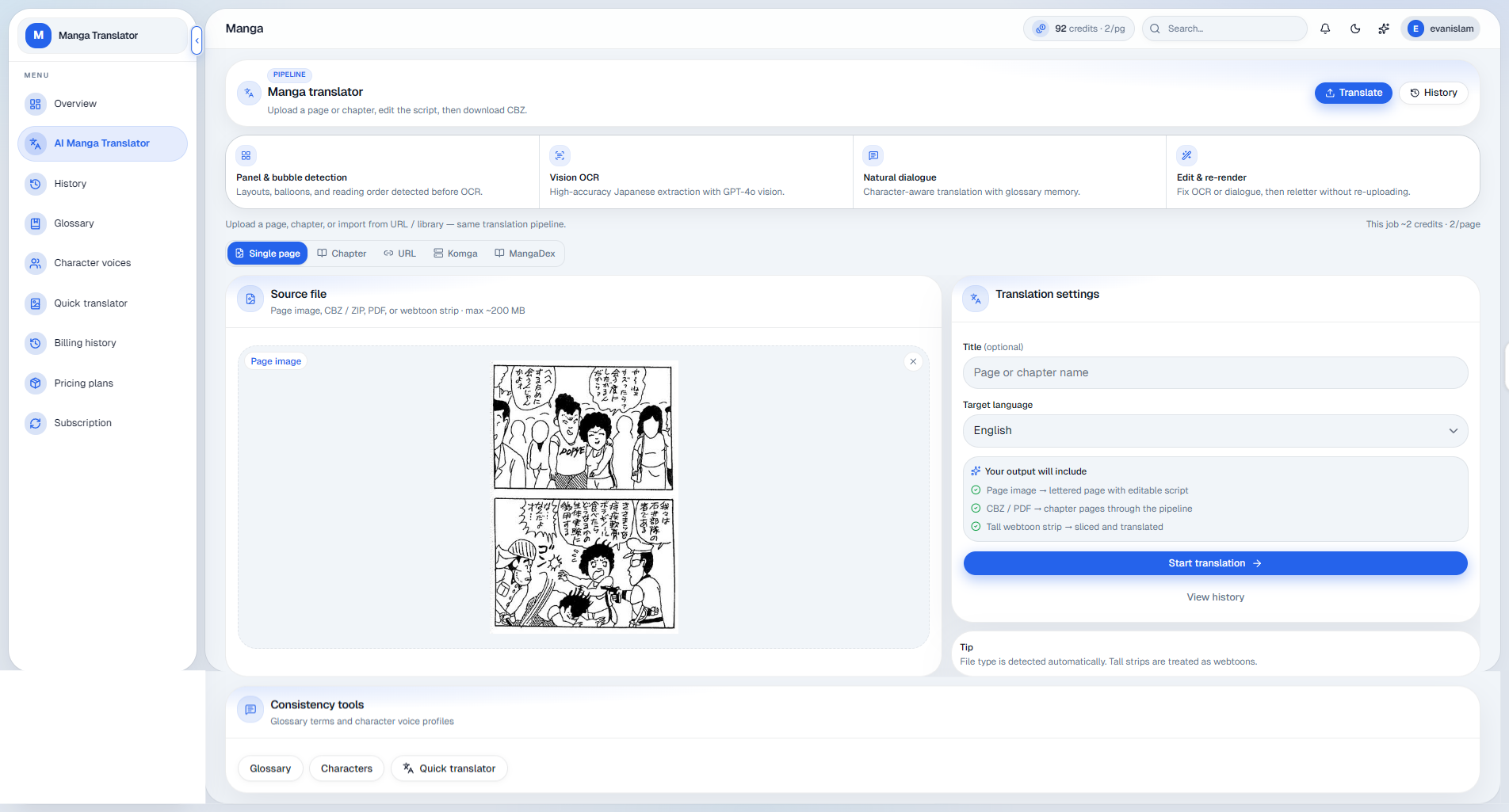
Getting Started: Your Dashboard
The Home tab gives you a complete overview of your account, recent activity, and translation tools.

Translate a Manga Page or Chapter
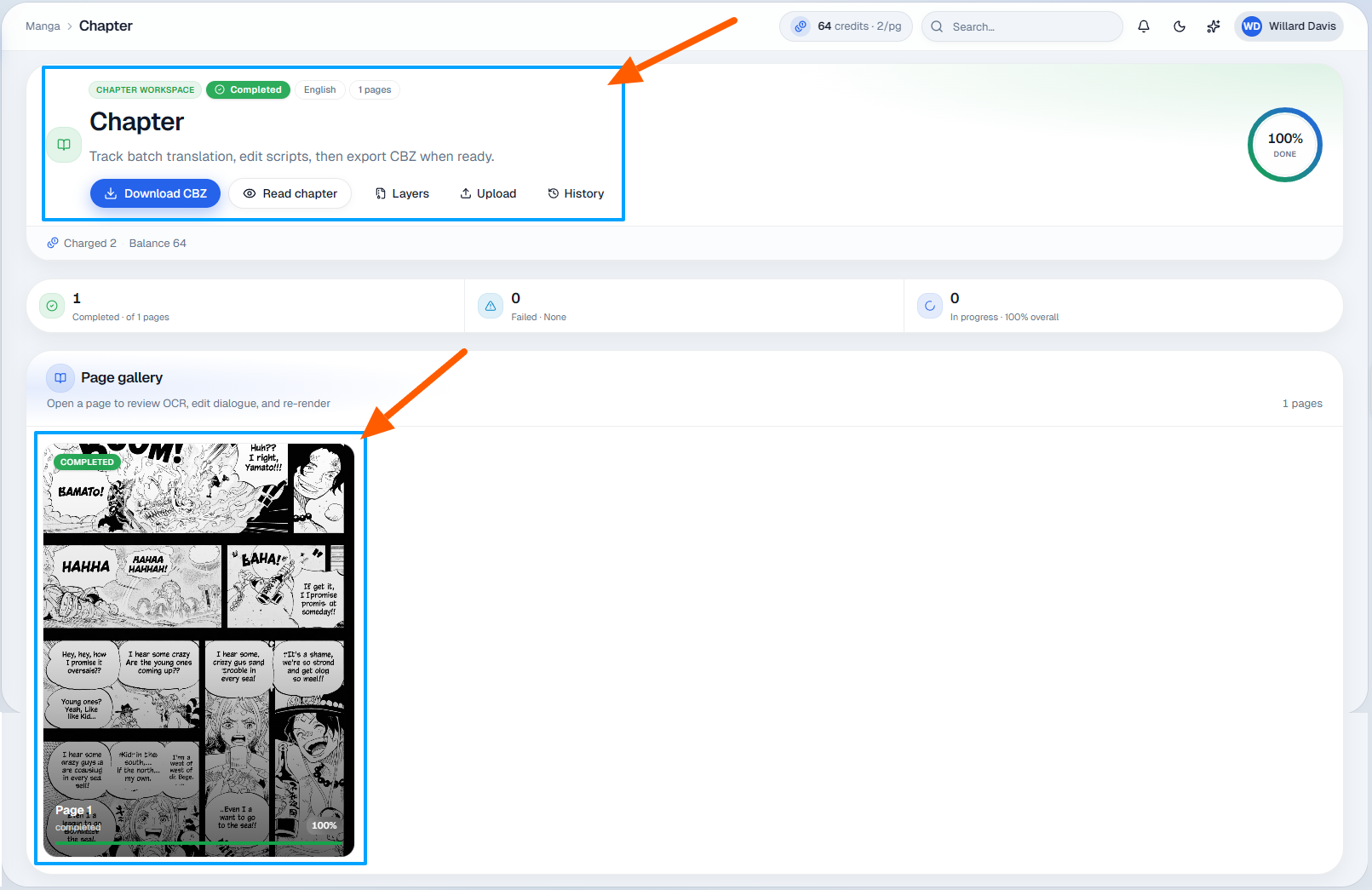
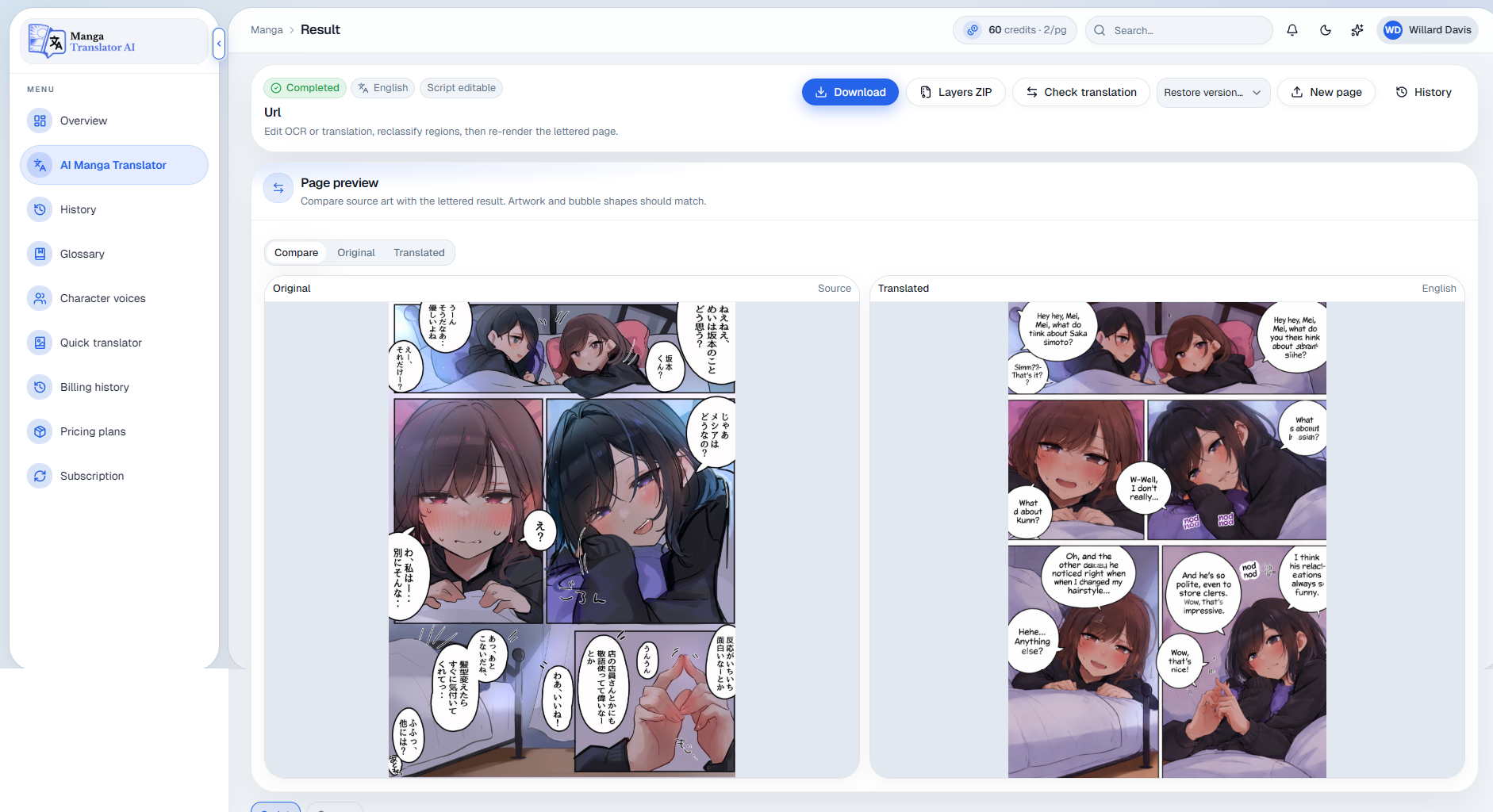
Upload your manga page or chapter, choose the target language, and let Manga Translator AI detect and replace the text while keeping the original artwork and layout intact.
- Upload a manga page or full chapter.
- Choose your preferred target language.
- Detect speech bubbles, captions, and manga text.
- Review the translated dialogue and page result.
- Download the translated manga and continue reading.
- Keep panels, artwork, and bubble placement intact.
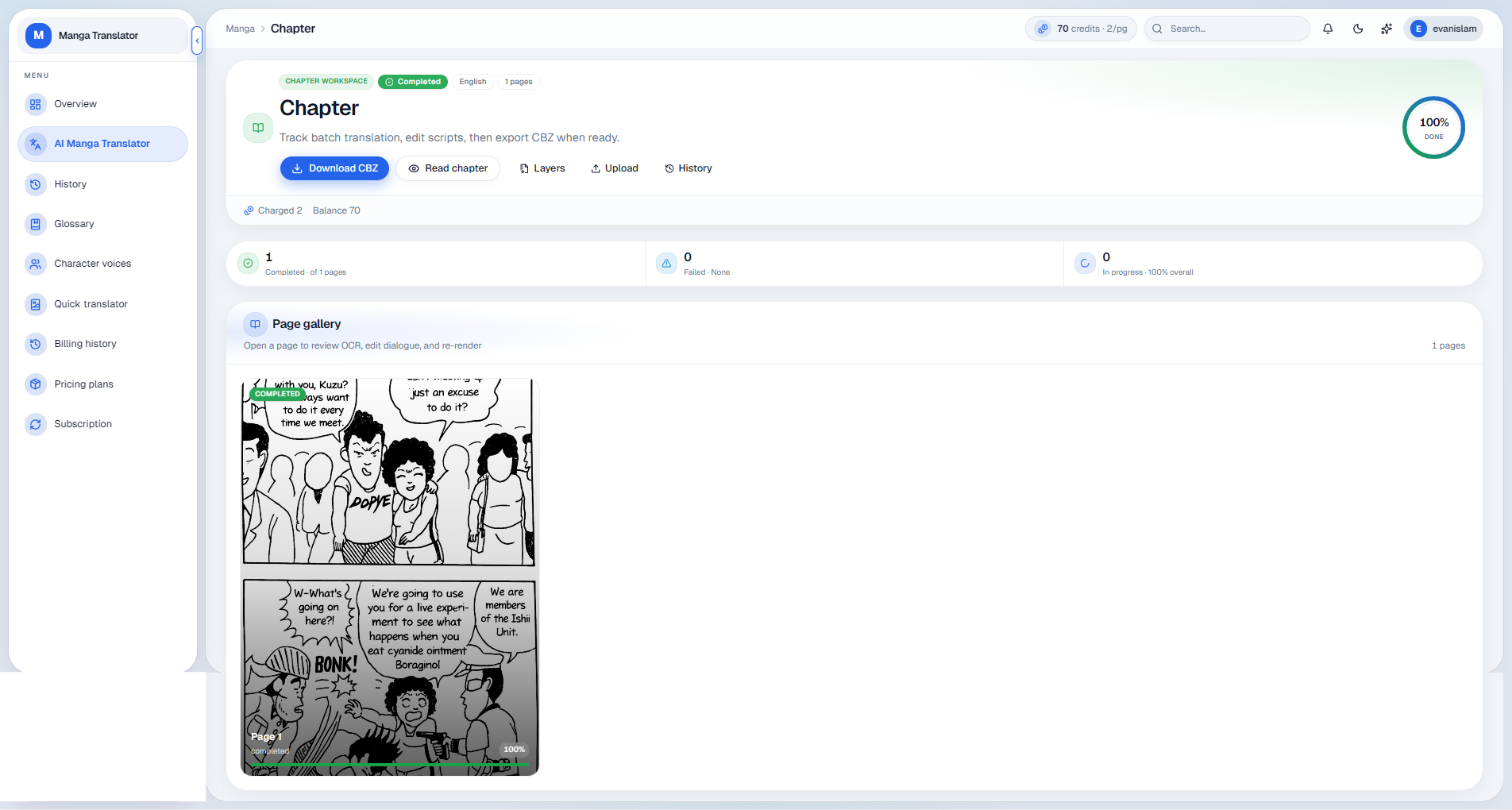
Image Translation Walkthrough
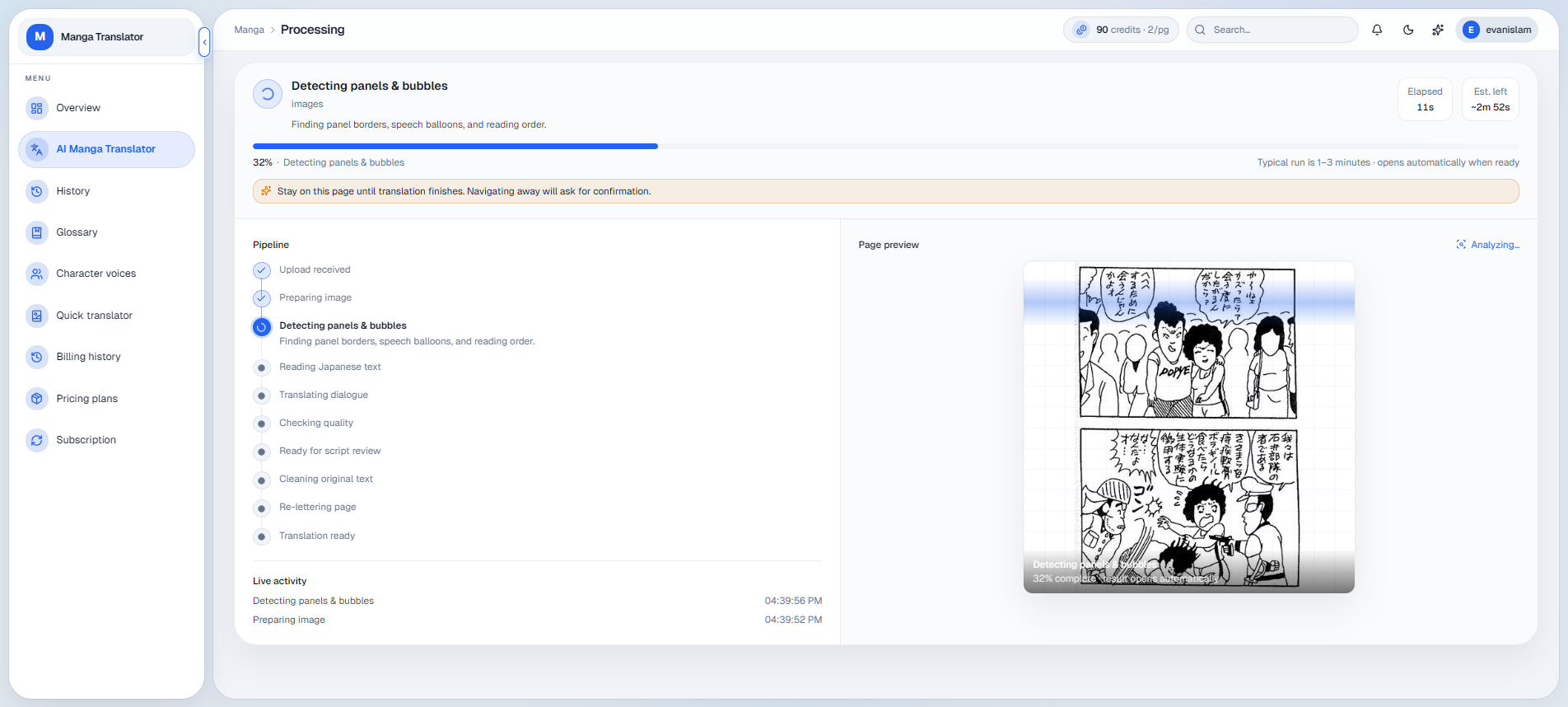
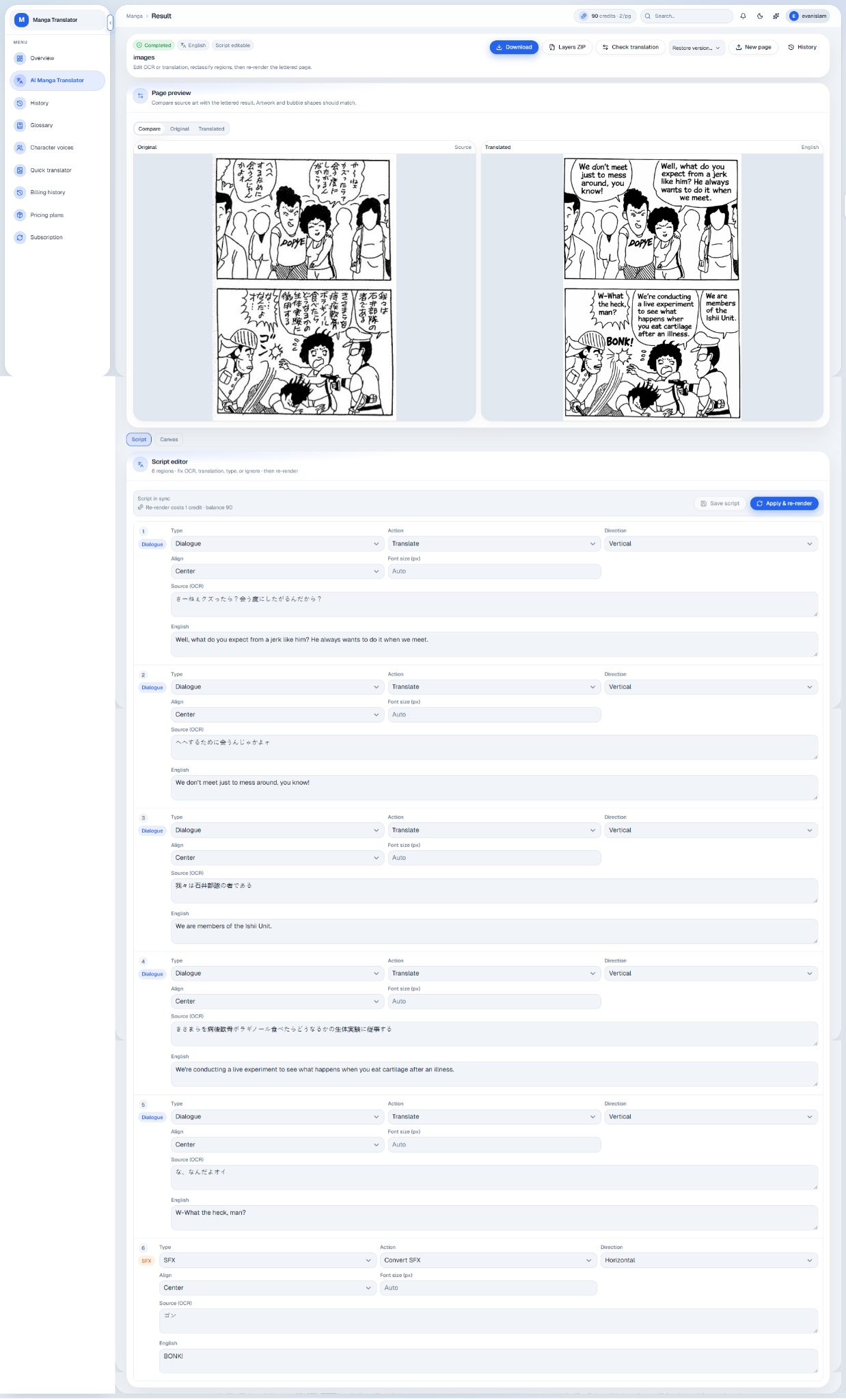
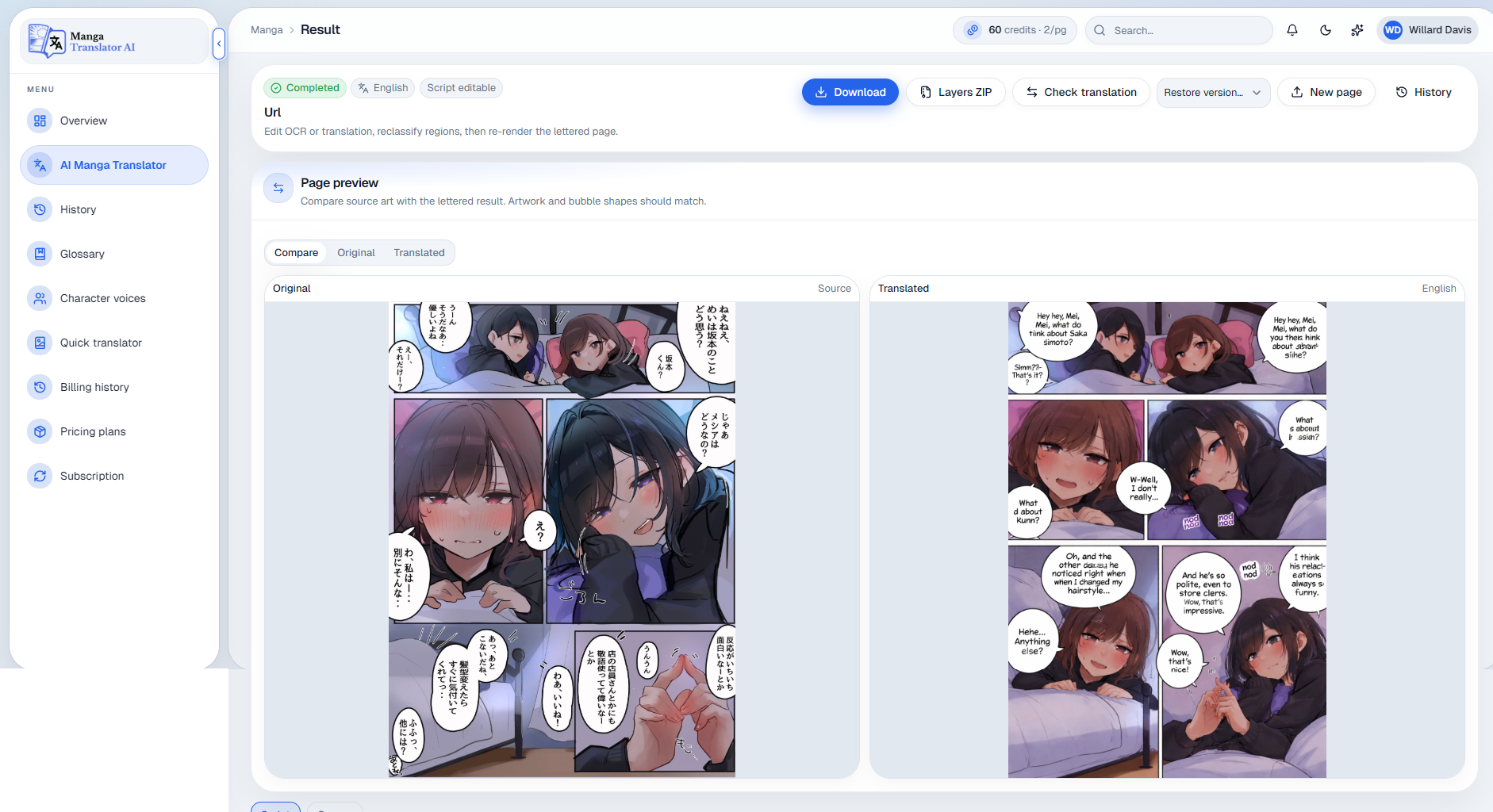
Chapter Translation Result
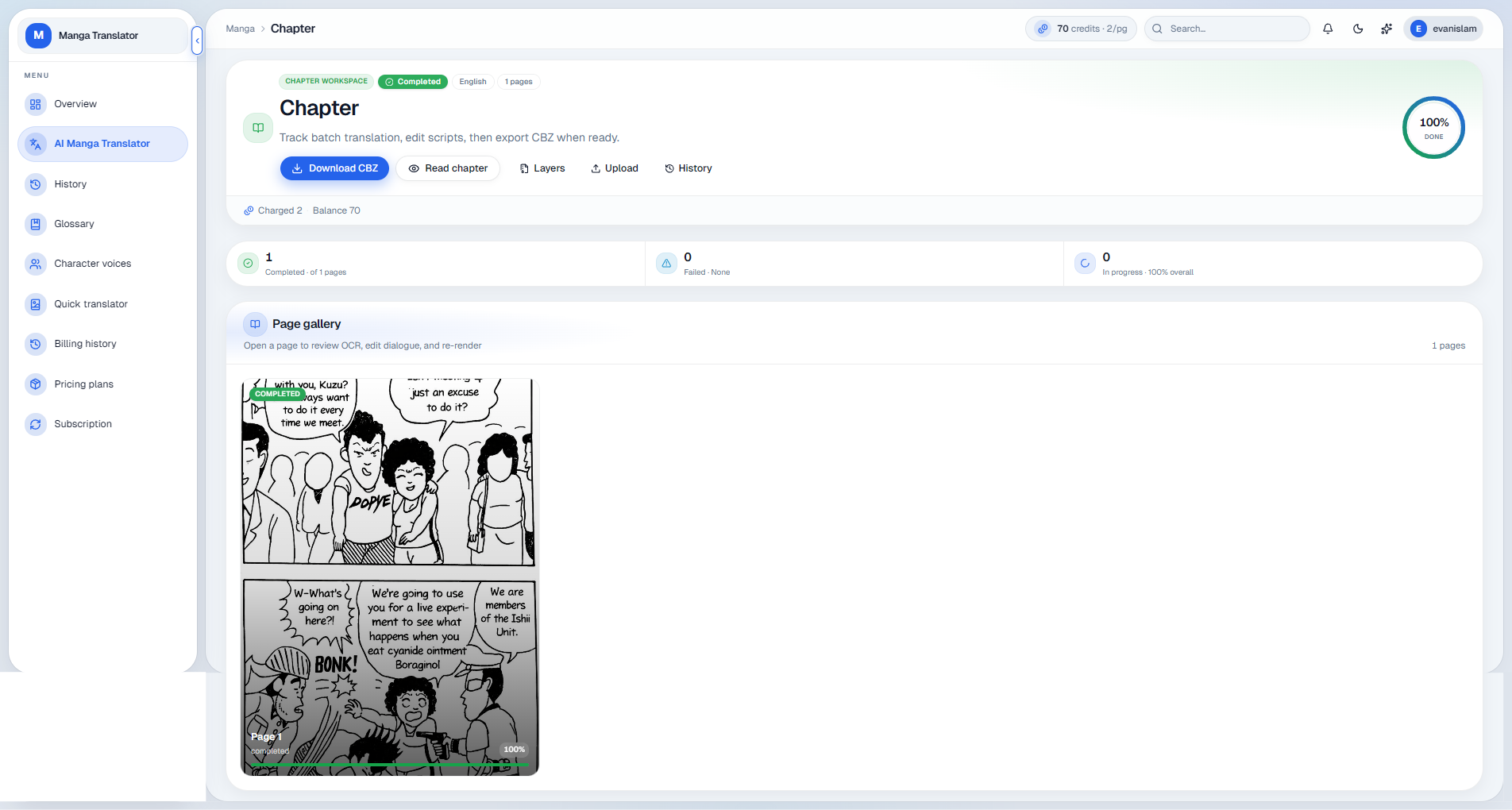
Translate From a URL
Use a public image or chapter URL when the source is already online.
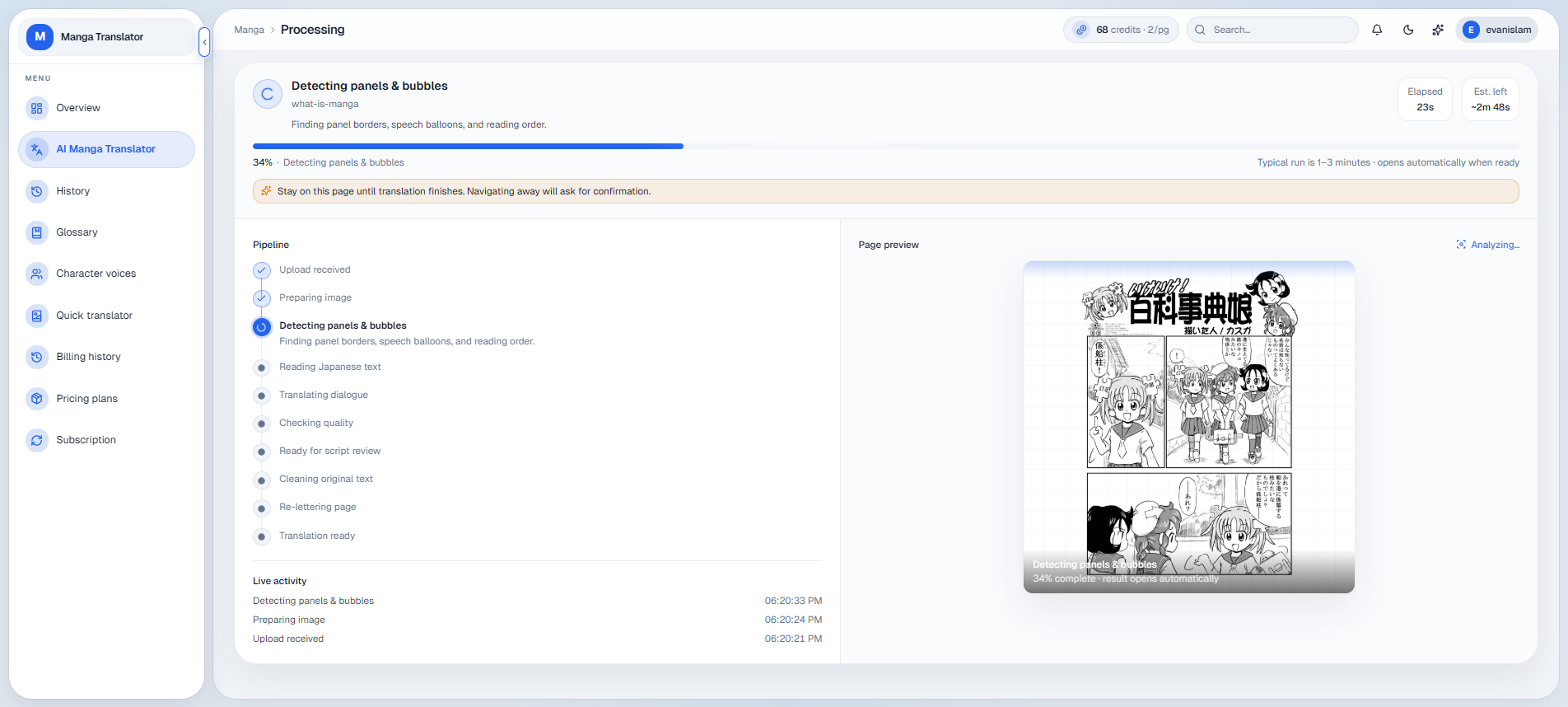
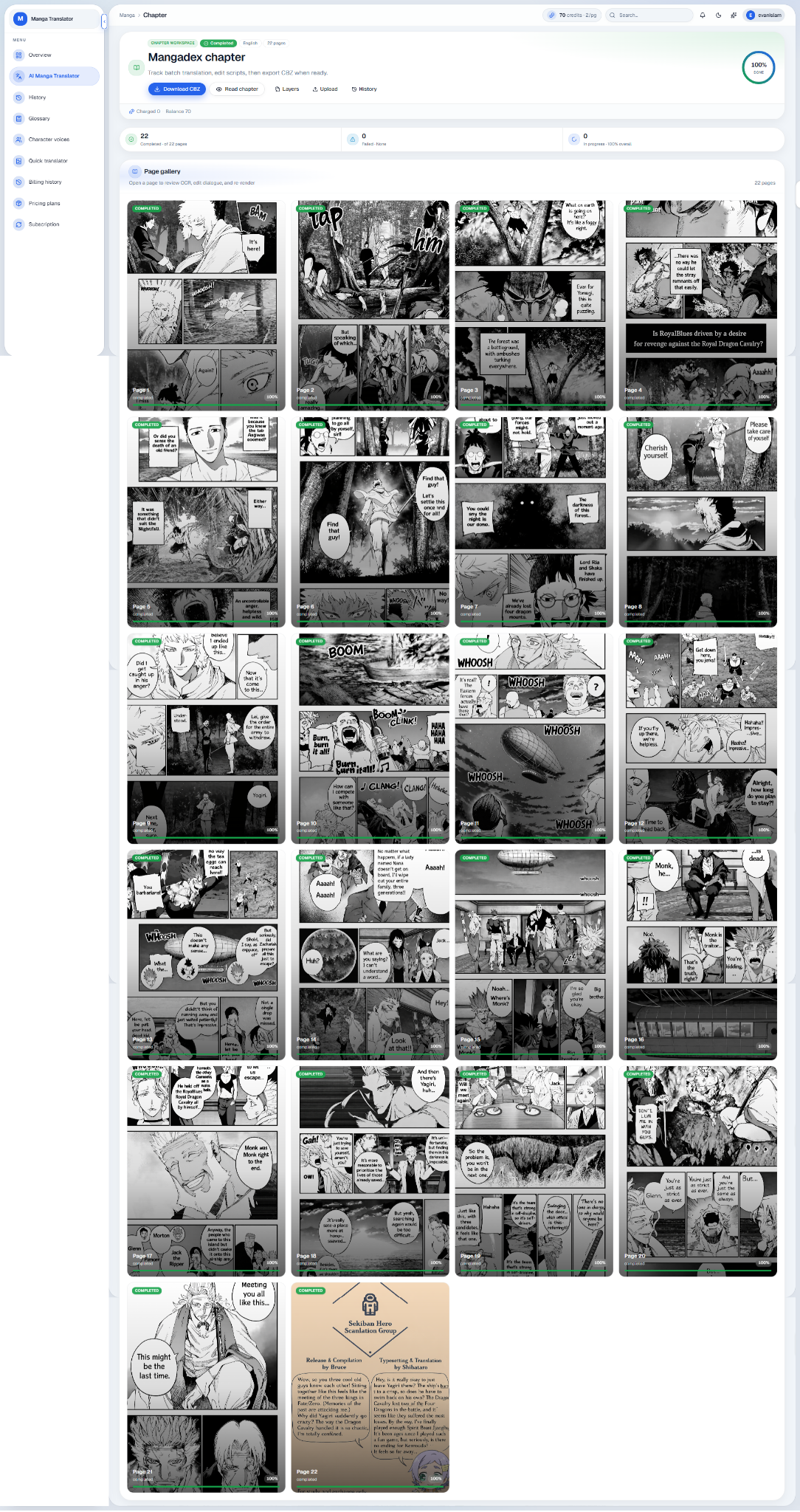
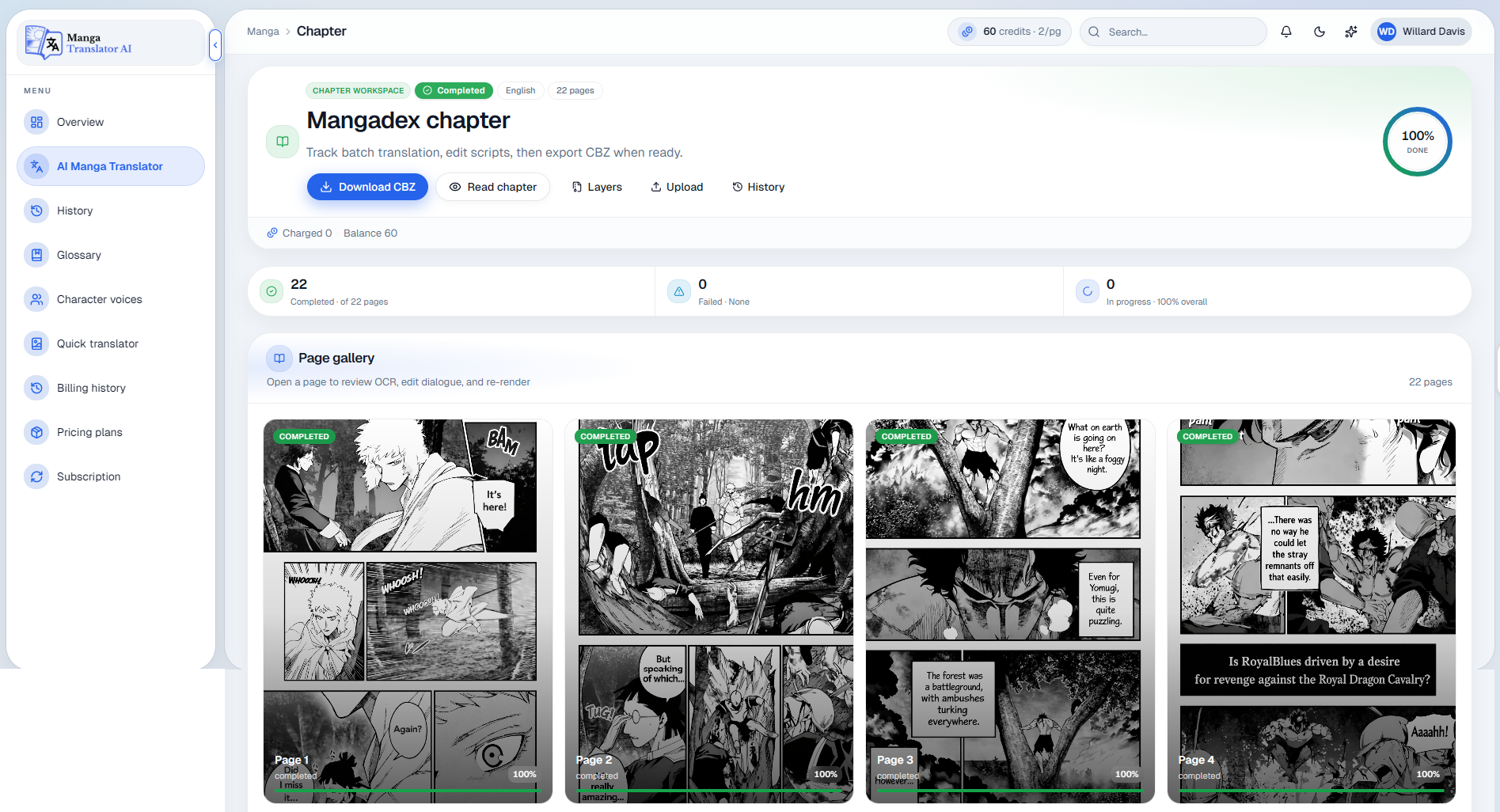
MangaDex Translation Result
Example MangaDex chapter: Open sample chapter.
Manga Translator AI Features
Use the Manga Translator tab to upload a page or chapter, or import content from a URL or supported library.
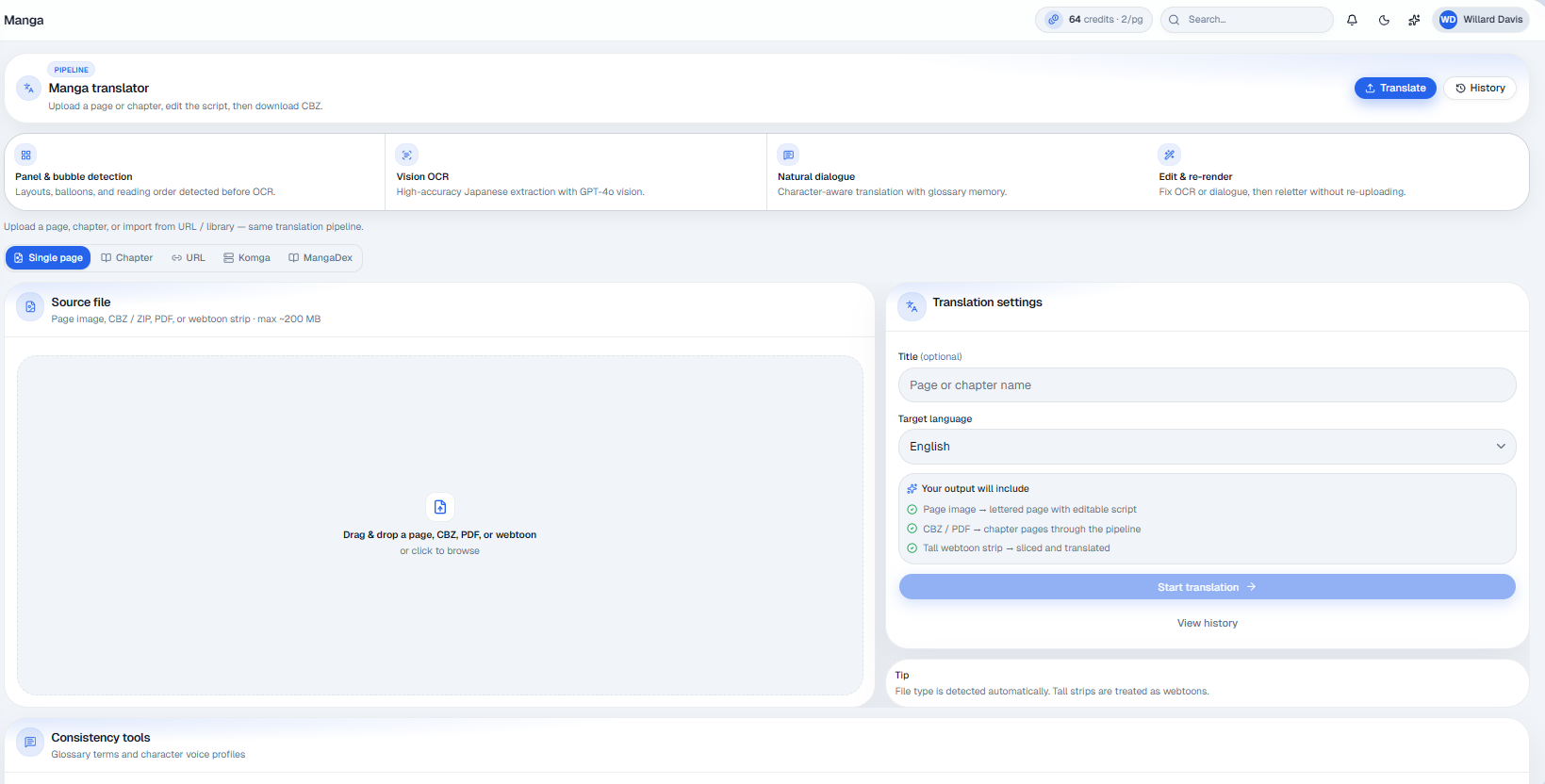
Single Page
Upload a page image, CBZ/ZIP file, PDF, or webtoon strip. Supported source files can be up to approximately 200 MB.
- Source file — Select a page image, CBZ/ZIP, PDF, or webtoon strip.
- Translation settings — Add an image title, select the target language, and start the process.

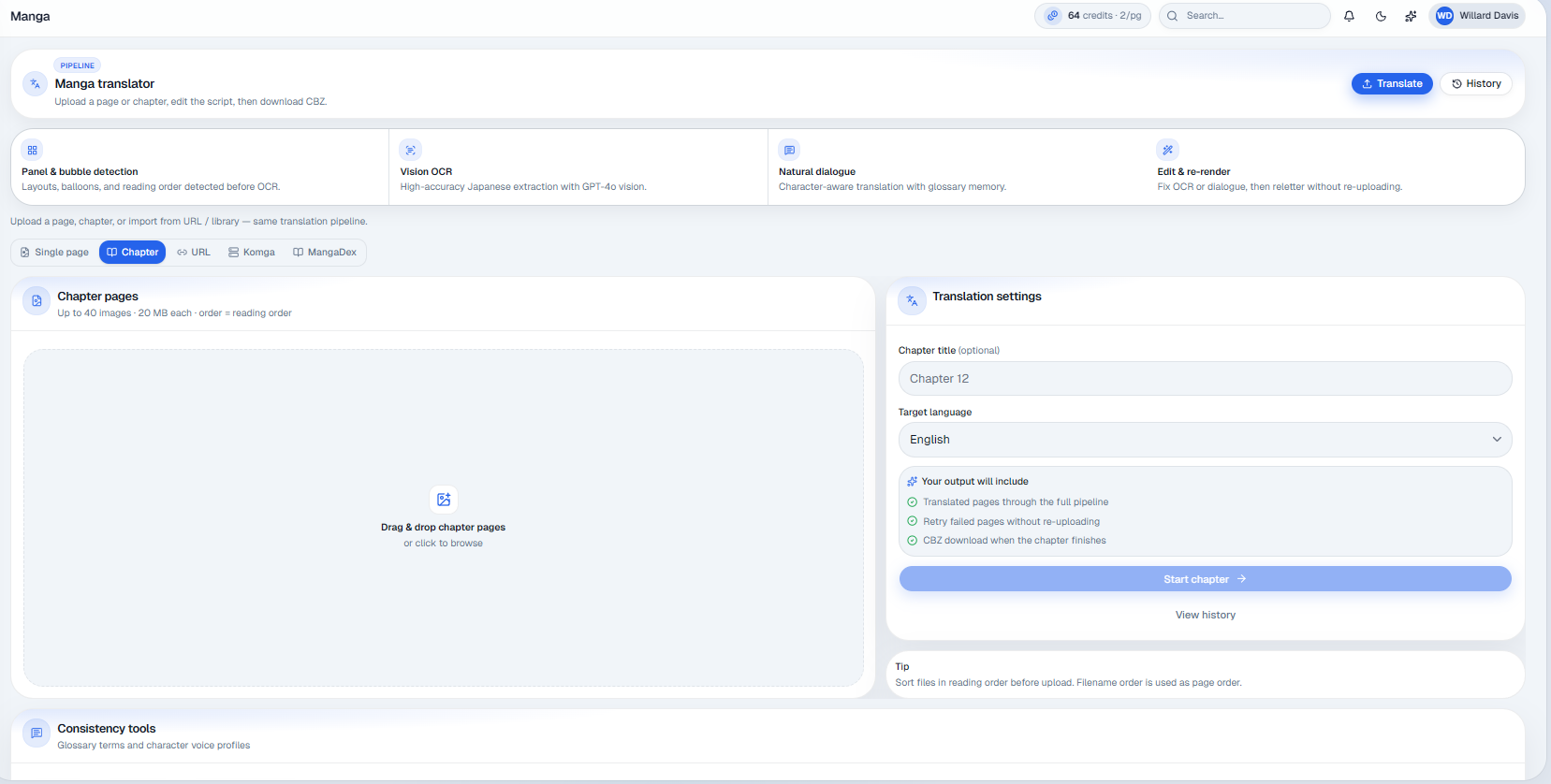
Chapter
Upload up to 40 images at a time. Each image can be up to 20 MB. Make sure the pages are arranged in the correct chapter sequence.
- Chapter pages — Select and upload up to 40 images at a time.
- Translation settings — Add the chapter title, select the target language, and start translation.
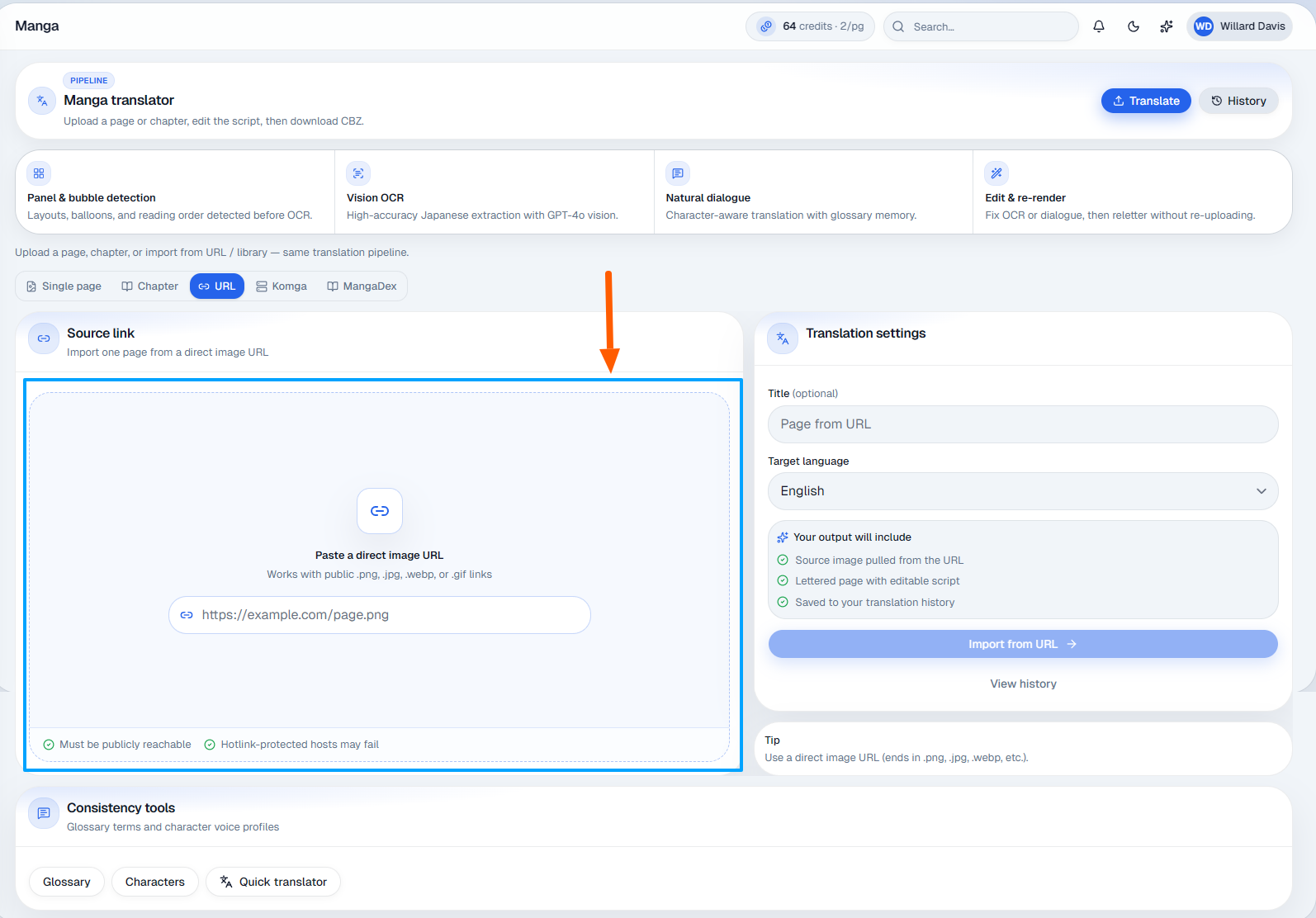
URL
Import one page from a direct public image, chapter, or book URL.
- Source link — Import one page from a direct image URL.
- Translation settings — Add an image name, select the target language, and start the process.
Source Link Example
Komga Book Library
Import a chapter from your Komga library using the Series ID and Book ID.
- Komga library — Import a chapter using series and book IDs from your Komga library.
- Translation settings — Add an image name, select the target language, and start the process.
MangaDex Chapter
Import a chapter with its UUID or a complete mangadex.org chapter link.
- MangaDex library — Import with a chapter UUID or MangaDex chapter link.
- Translation settings — Add an image name, select the target language, and start the process.
Manga History
Keep recent manga translation results organized and accessible for 31 days.
Return to Recent Translation Work
Open History from the dashboard sidebar to review previously translated chapters and single pages without starting the translation again.
Your translation history is stored for 31 days. The expected deletion date appears on each result, and older items are automatically removed after the retention period.
- Open History from the dashboard sidebar.
- View translated chapters and single pages.
- Check the status, such as Completed.
- See page count, language, time, and deletion date.
- Review chapter batches from Chapters.
- Browse individual translations from Single pages.
- Use image previews to identify previous work.
- Click New upload to start another translation.
The Chapters area groups chapter-based translations together, while Single pages displays individual page translations with visual previews. This helps you identify completed work and track when each result will be removed.
Glossary (Term Memory)
Keep names, expressions, and preferred translations consistent across batch translations.
Make Recurring Terms Consistent
Terms saved in the Glossary can be applied during translation so character names, phrases, expressions, and special wording appear the way you want every time.
- Open Glossary from the dashboard sidebar.
- Add a Japanese source term and English translation.
- Assign a term to a specific character.
- Choose a category for each entry.
- Add notes about meaning, tone, or context.
- Save terms for use during batch translation.
- Create global terms for consistent use.
- Manage names, honorifics, jokes, and phrases.
The Glossary is especially useful for long chapters and recurring series because it helps maintain consistent wording, character references, and translation style throughout the project.
Characters (Character Voices)
Preserve each manga character’s personality and speaking style throughout a translation.
Keep Dialogue in Character
The Character Voices section lets you define speech style and personality context for batch translation. The speech-style batch translation limit is 50.
- Add the character name.
- Set a casual, formal, or blunt speech style.
- Add important personality traits.
- Write a short character description.
- Save profiles for batch translations.
- Connect characters with Glossary terms.
This context helps the translator preserve each character’s unique tone, personality, and speaking style across manga chapters.
Quick Translate
Translate one manga page or a block of dialogue without starting a full chapter workflow.
Translate Page
- Select the target language.
- Upload a manga page or paste a public image URL.
- Add an optional custom prompt.
- Click Translate page.
- View the translated manga in Output.
Translate Dialogue
- Open the Translate dialogue tab.
- Select the target language.
- Paste the source manga dialogue.
- Add an optional custom prompt.
- Click Translate dialogue.
- View the translated text in Output.
Using Manga Translator AI
Follow one clear workflow from account creation to organized translation results.
Why Manga Translator AI Matters
Because your translation workflow is managed from one centralized dashboard, Manga Translator AI helps you translate, review, and organize manga without switching between separate OCR, translation, and image-editing tools.
- Translate single manga pages quickly.
- Process full CBZ, ZIP, PDF, or image chapters.
- Translate webtoon strips and source URLs.
- Return to recent work in Manga History.
- Save consistent terms in the Glossary.
- Define character tone with Character Voices.
- Handle fast page or dialogue translations.
- Keep long translation projects organized.
Final Notes
Keep your workflow clear, your terminology consistent, and your recent translation work easy to find.
Thank you for exploring Manga Translator AI. The platform makes it easy to translate manga pages, chapters, webtoons, and dialogue while keeping your workflow organized.
A Quick Recap of Your Workflow
- Sign up and log in to your Manga Translator AI account.
- Open the dashboard and choose the translation tool you need.
- Upload a manga page, chapter, webtoon, or supported source link.
- Select the target language and start translation.
- Review the translated result and make any needed adjustments.
- Use History, Glossary, Character Voices, and Quick Translate to improve future translations.
Keep Your Workspace Organized
- Use clear titles for manga pages and chapters so they are easy to identify later.
- Review Manga History regularly before stored translations are removed.
- Use the Glossary to keep names, terms, and recurring expressions consistent.
- Set up Character Voices to maintain each character’s tone and speaking style.
- Use Quick Translate for fast page or dialogue translations.
Quick fixes for common translation issues
Check these solutions first. If the issue continues, contact the Manga Translator AI support team.
support@mangatranslatorai.ioTranslation is not starting. What should I check?
Make sure the file format is supported and the upload has completed correctly. For chapter uploads, confirm that every image stays within the permitted file-size limit.
Why does the translation result look incorrect?
Confirm the selected target language, then try a clearer custom prompt. For recurring terminology or character-specific dialogue, add context through the Glossary and Character Voices.
How can I keep character names and terms consistent?
Add recurring names, phrases, honorifics, and preferred translations to the Glossary. Create Character Voice profiles when a speaker needs a consistent tone or personality.
Why can’t I find a previous translation?
Open Manga History and check both Chapters and Single pages. Remember that stored translations are retained for 31 days and then automatically removed.
What should I do if Quick Translate is not working?
Re-upload the image or confirm that the public image URL is accessible without a sign-in. Also check the target language and any optional custom prompt before trying again.
Where can I get further assistance?
Email support@mangatranslatorai.io with a clear description of the issue. Include the workflow you used, the file type, and any relevant error message so the team can assist efficiently.
Translate your next manga page with a clearer workflow
Open Manga Translator AI to translate a page, chapter, webtoon, or supported source link—or contact our team if you need help with a technical or translation-related concern.
support@mangatranslatorai.io